

This tutorial will guide you on how to utilize the Flowrabbit AI router widget to implement conditional logic flows effectively.
To begin I show you and example APP, here you can upload a file using the designated upload area.
In this case, I am uploading a PDF document.
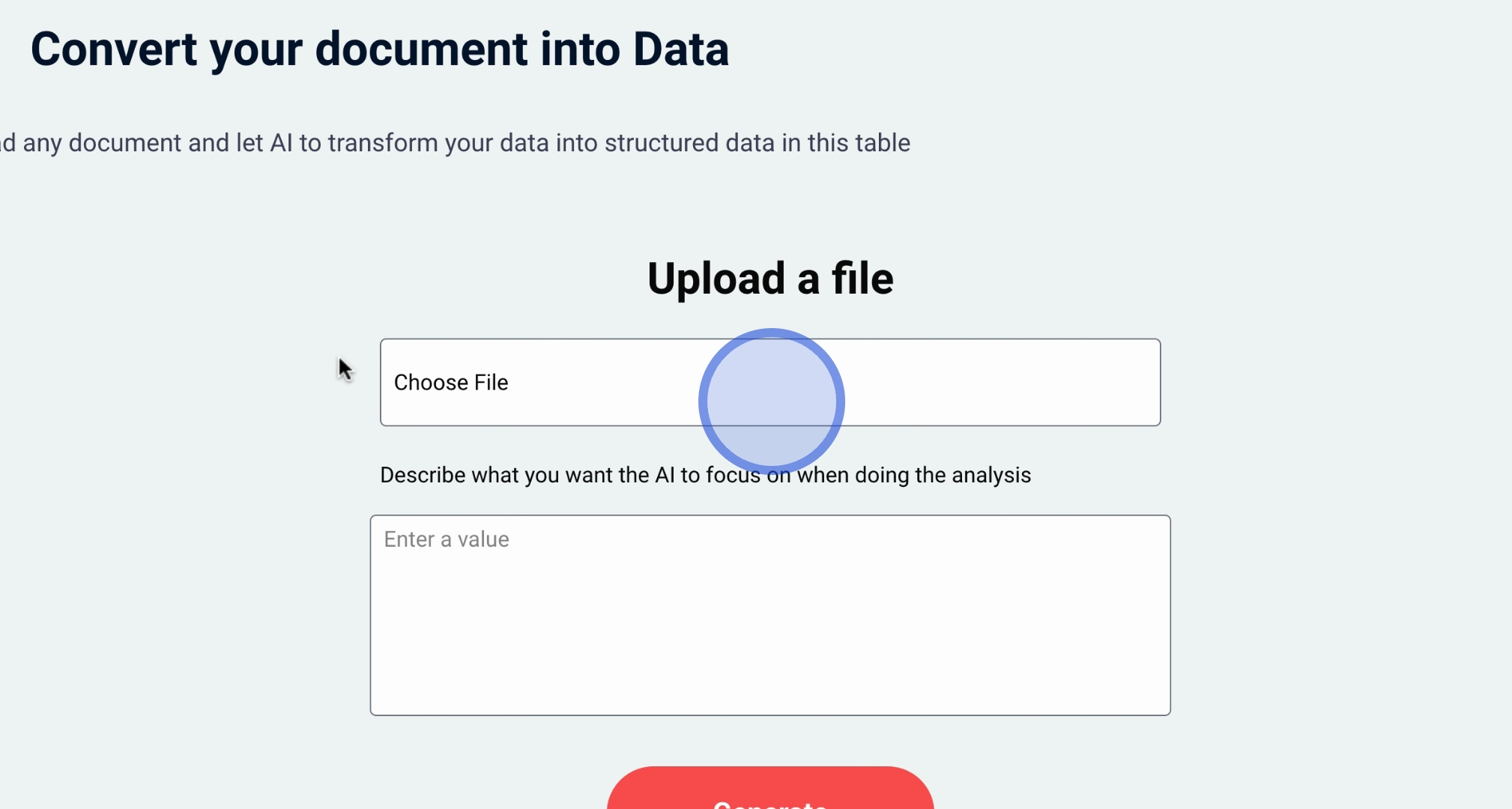
Next, instruct the AI to extract the prompts to obtain the data structured in this example app.
Once processed, the AI will extract the prompts and display them in a table format.
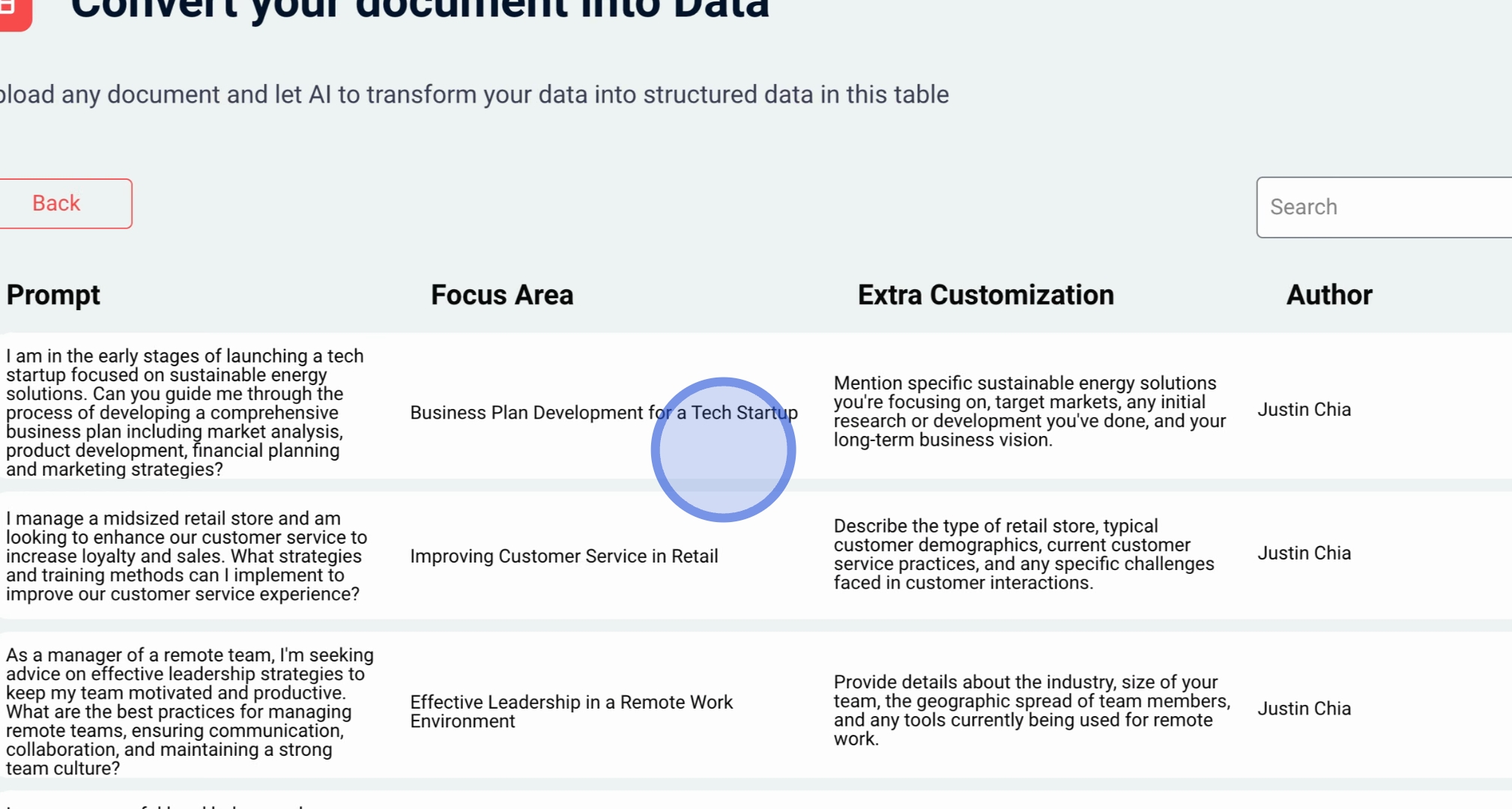
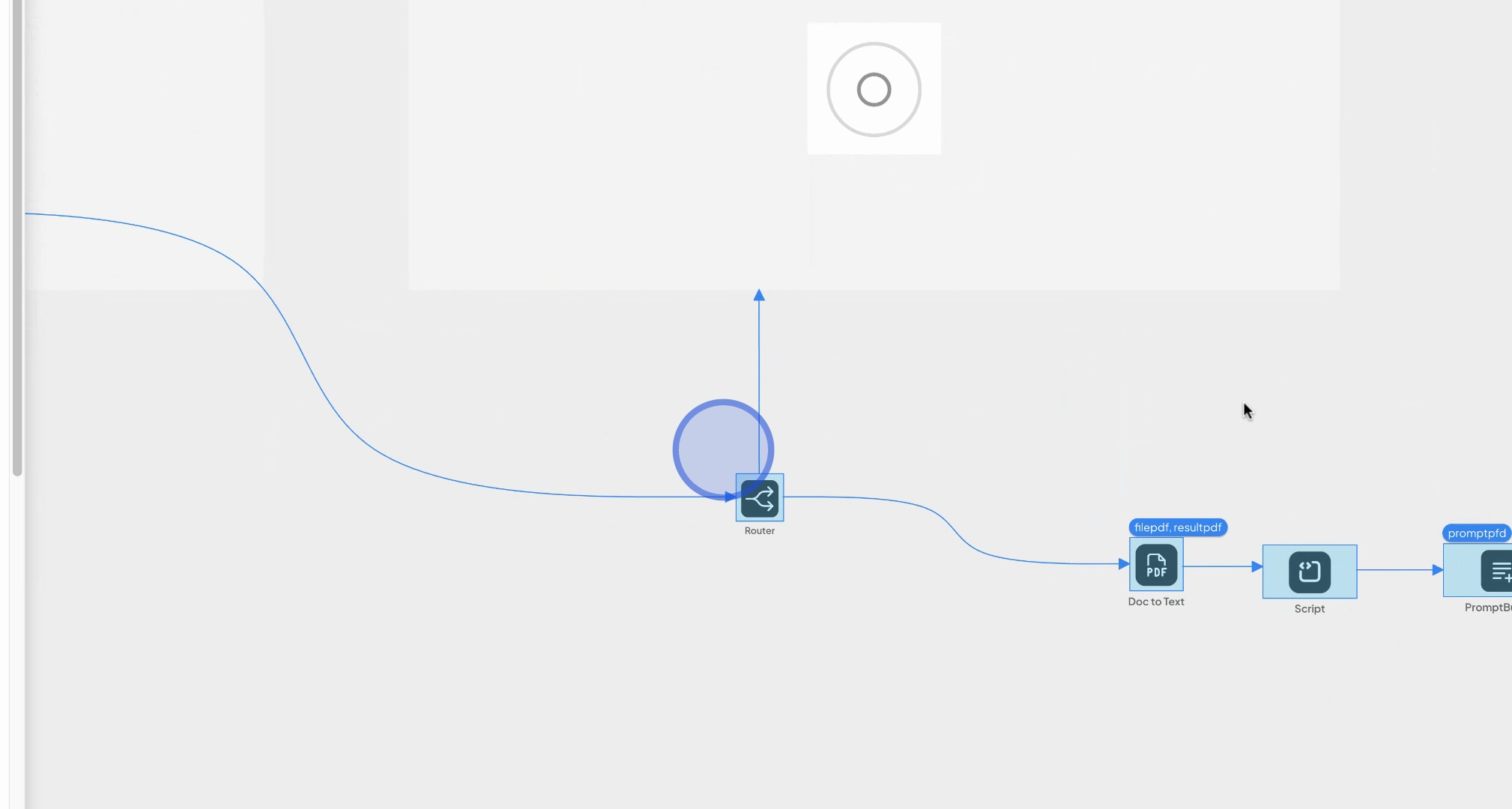
Upon pressing the designated button, this action connects to a router widget.
At this point, the router will navigate to the appropriate screen.
Simultaneously, it will execute all associated actions.
Once these actions are completed, you will be directed to the next screen.
If you wish to incorporate conditional logic, click on the widget to access the rules section.
Here, you can specify conditions for navigation.
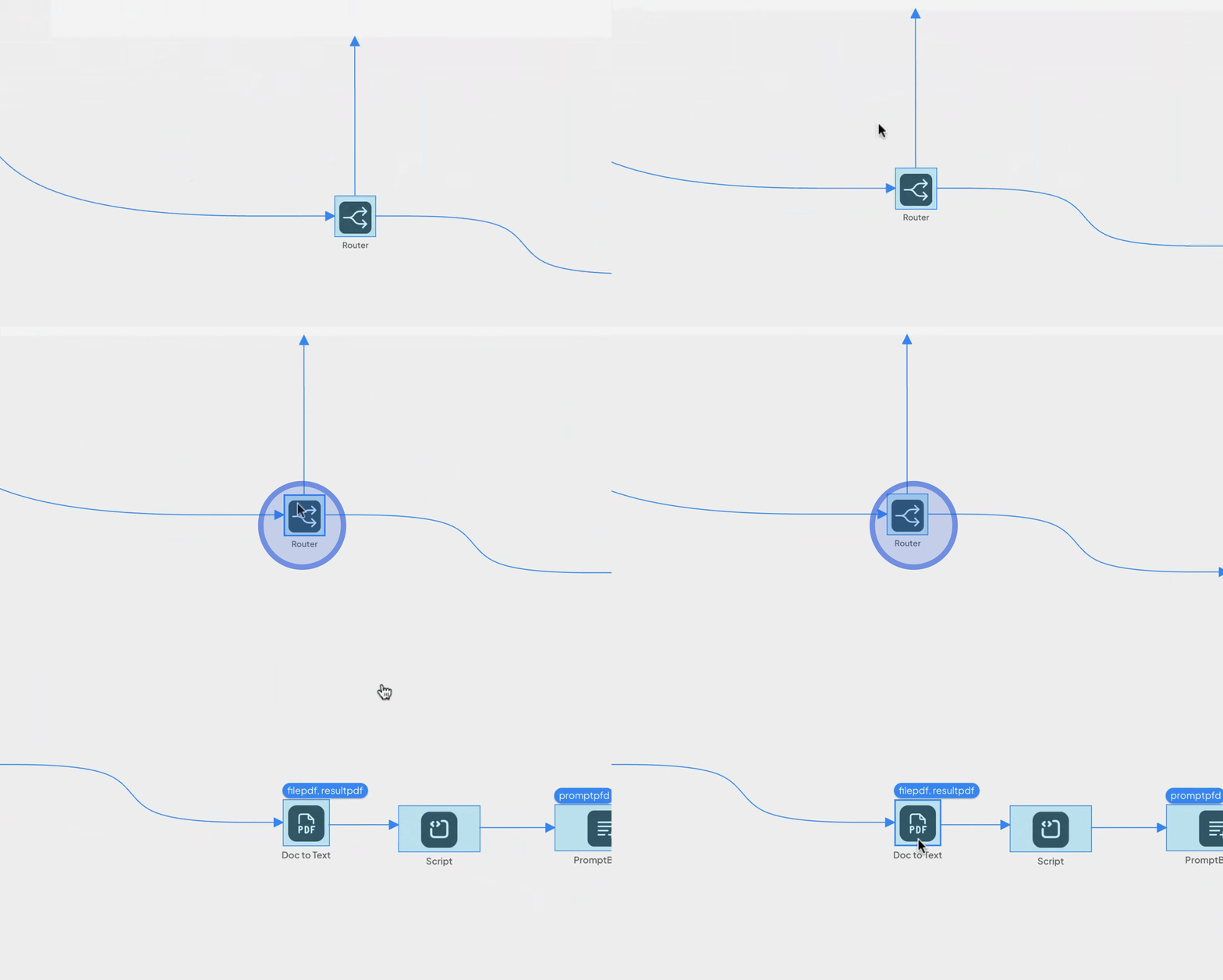
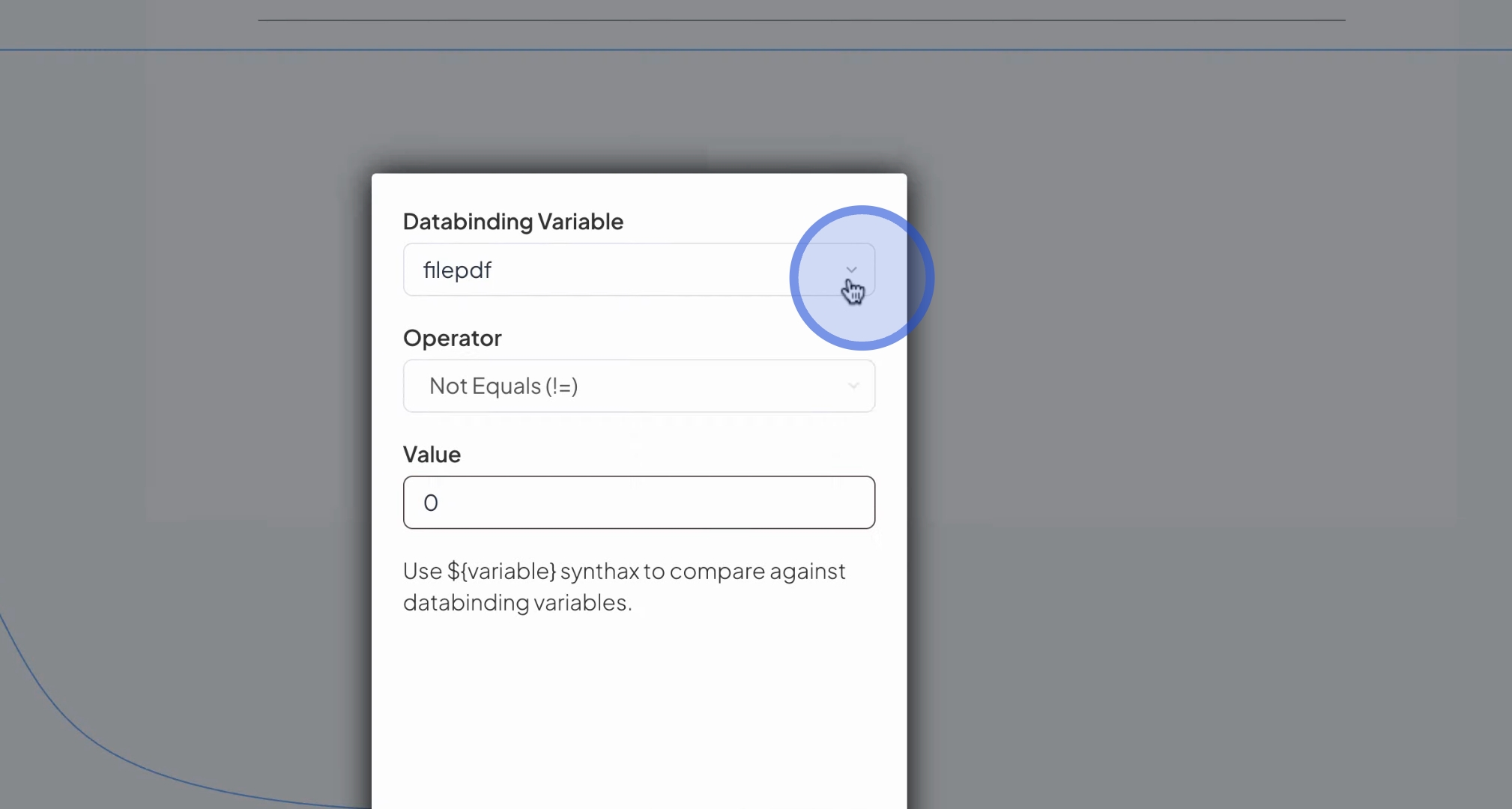
For example, you could select a data binding variable and establish a condition such as navigating only if the value equals a non-zero amount.
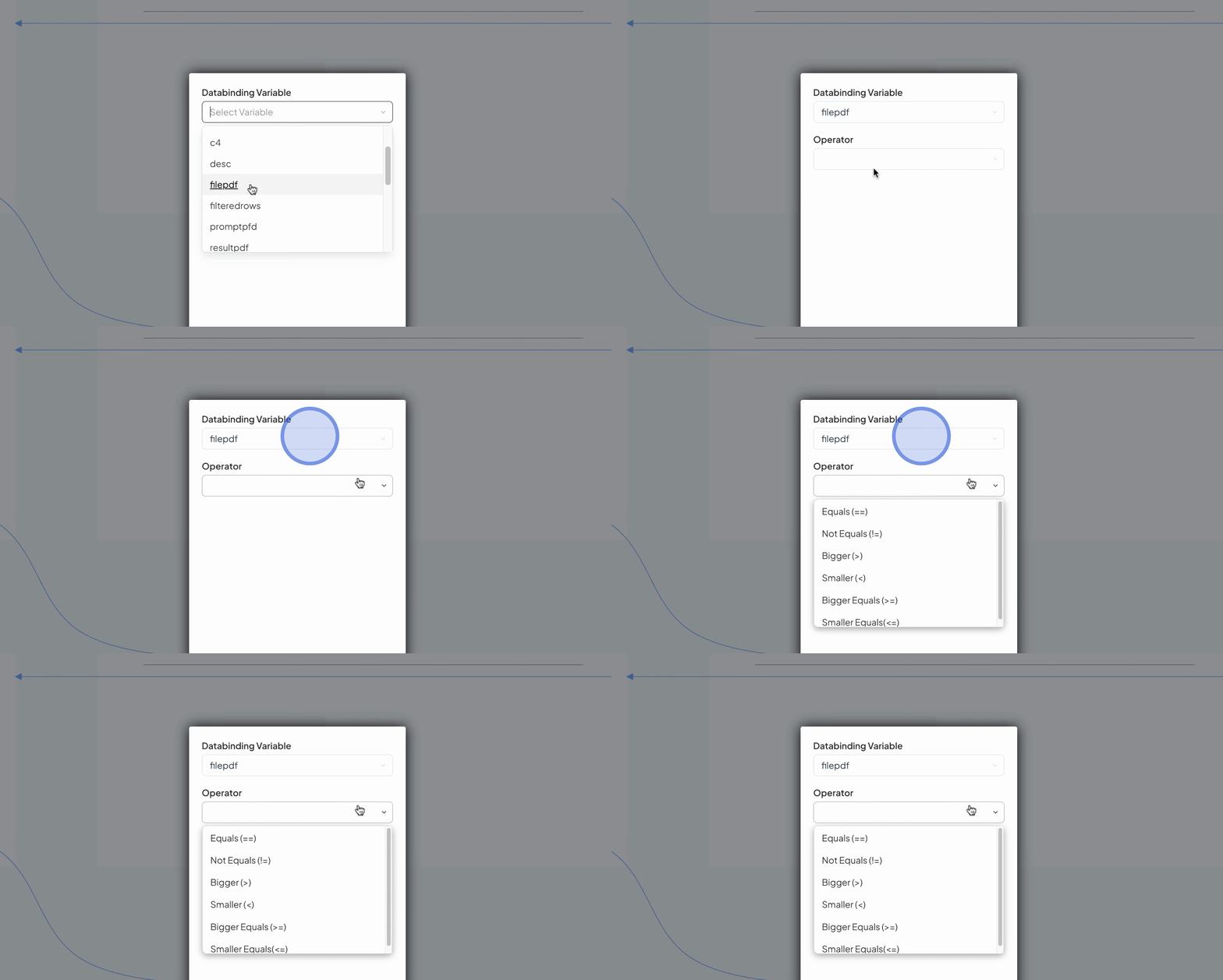
The conditional logic widget offers various options to set conditions based on criteria like equality, greater than, or lesser than.
You can also use data binding variables by pressing the dollar sign and typing your variable name.
This allows you to enhance each link with specific conditional logic rules.
By following these steps, you can effectively utilize the FlowRabbit AI router widget to implement conditional logic flows in your application.
